समझ में आने वाले frames
HTML to frame: हर पेज और screen एक Figma frame बन जाती है
पेज और screen के नाम वाले top-level frames, DOM का पालन करने वाले nested frames, और ऐसा Auto Layout जो लागू होने से पहले verify होता है।
- Frame width असली डिज़ाइन से मापी जाती है
- Nested frames पेज structure को दर्शाते हैं
- एक import में Desktop, Tablet और Mobile frames (Pro)
जल्द ही Figma Community पर
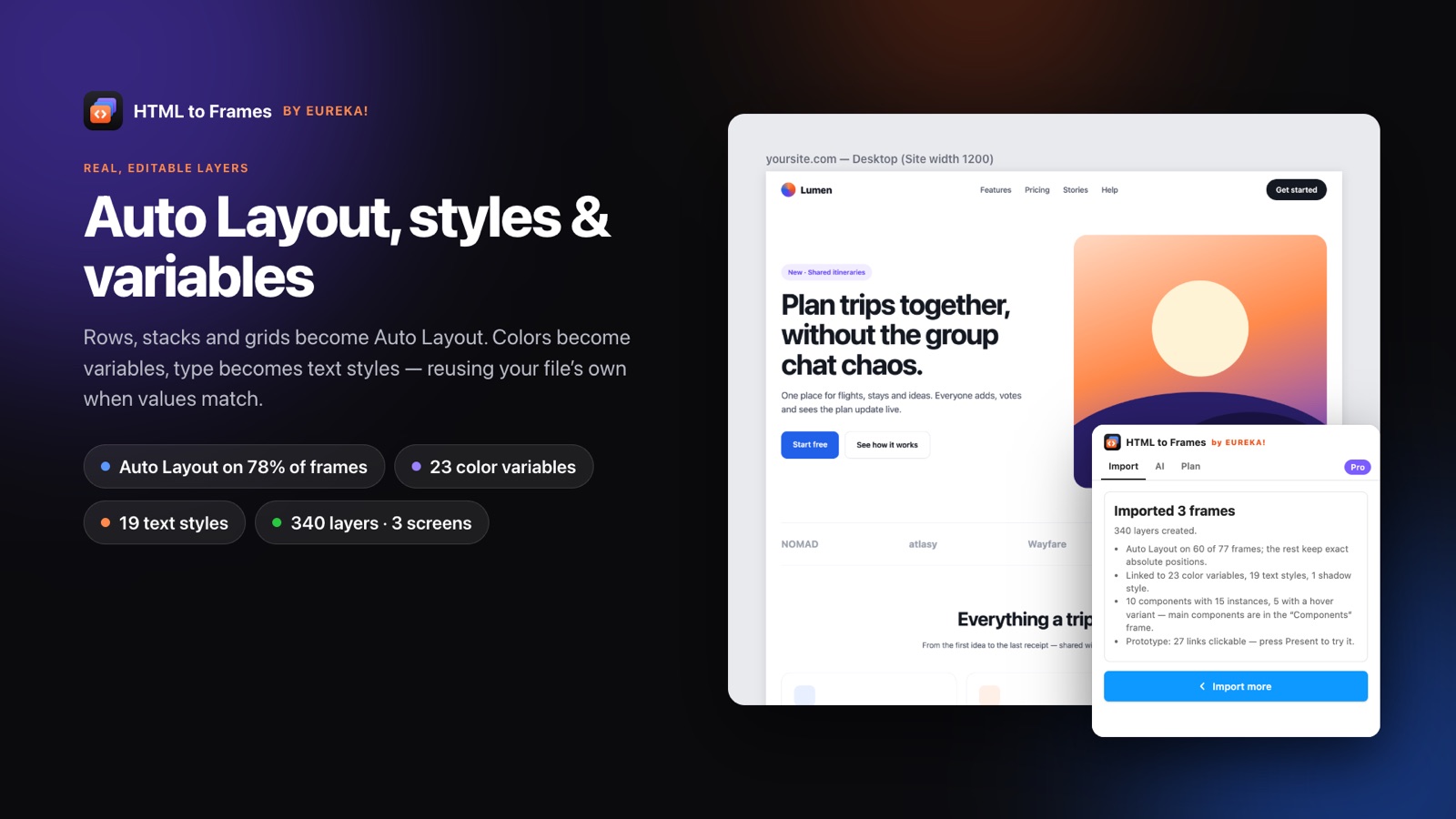
HTML to frame उस output को बताता है जो designers असल में import से चाहते हैं: एक अकेली तस्वीर नहीं, बल्कि हर पेज और screen के लिए एक Figma frame, जिसके अंदर nested frames की ऐसी hierarchy हो जो layers panel खोलने पर समझ में आए। EUREKA! का Figma plugin, HTML to Frames, हर import को इसी तरह व्यवस्थित करता है।
हर capture की गई screen एक predictable नाम वाला top-level frame बनती है, जैसे example.com/pricing — Desktop (1920)। Protocol और www हटा दिए जाते हैं और नाम 60 characters के भीतर रहते हैं, इसलिए multi-page import को एक नज़र में देखना आसान होता है। अंदर, पेज के containers frames बनते हैं, और वे frames DOM का पालन करते हैं। एक header frame में navigation frame होता है, जिसमें link frames होते हैं, लगभग उसी markup की तरह जिससे वे आए हैं।
Frame width अंदाज़ा नहीं है। Plugin import के समय पेज की असली design width मापता है। Full-bleed designs को centered content box के साथ 1920 frame मिलता है, सच में boxed sites को अपनी box width, जैसे 1200, 1280 या 1440, और fluid sites को 1440। Multi-page import में site के हर पेज के लिए वही width इस्तेमाल होती है, ताकि frames एक सीध में रहें।
जहां layout अनुमति देता है, frames, Auto Layout frames बन जाते हैं। Plugin browser की मापी गई geometry से direction, gaps, padding, alignment और wrapping निकालता है, plan लागू करता है और हर child को 2 px के भीतर जांचता है। जहां यह नहीं टिकता, वे frames constraints के साथ absolute positions रखते हैं, ताकि कुछ भी अप्रत्याशित रूप से न खिसके।
उस engine की details के लिए Auto Layout explained पढ़ें। व्यापक conversion के लिए HTML to Figma देखें, और एक साथ कई पेजों के लिए website to Figma।
एक पेज frames में कैसे बदलता है
- 01
Site width मापें
Plugin पहचानता है कि डिज़ाइन full-bleed, boxed या fluid है और उसी हिसाब से Desktop frame की width चुनता है।
- 02
Pixel-exact frames बनाएं
हर container अपनी मापी गई position पर एक frame बनता है, DOM hierarchy को दर्शाते हुए।
- 03
अंदर से बाहर Auto Layout निकालें
सबसे अंदर के frames से शुरू करके, stacks, wraps, gaps, padding और alignment निकाले और लागू किए जाते हैं।
- 04
Verify करें या fallback
हर child 2 px के भीतर जांचा जाता है; जो frames नहीं टिकते वे आसान plan आज़माते हैं या constraints के साथ absolute positions रखते हैं।
Frame-level details जो cleanup का समय बचाती हैं
मापी गई site width
Desktop frames डिज़ाइन की असली width इस्तेमाल करते हैं: full-bleed के लिए 1920, boxed sites के लिए box की width, fluid sites के लिए 1440।
DOM जैसी hierarchy
Nested frames पेज structure का पालन करते हैं, इसलिए sections, cards और buttons layers panel में आसानी से मिल जाते हैं।
Auto Layout frames
Horizontal और vertical stacks, wrapping rows, gaps और padding, हर child के स्तर पर verified।
Responsive इरादा
Centered content centered रहता है, बराबर cards fill होते हैं, और logo व menu के बीच की जगह एक Fill item बन जाती है।
Responsive set
एक पेज के Desktop, Tablet 768 और Mobile 390 frames parallel में capture होते हैं, और एक import गिने जाते हैं (Pro)।
Frame को re-import करें
हर frame अपना source URL और width save रखता है, इसलिए आप उसे एक click में refresh कर सकते हैं।
Frame naming और site width
जब आप तीन screens पर दस पेज import करते हैं, तो frame names मायने रखते हैं। HTML to Frames एक ही consistent pattern इस्तेमाल करता है:
domain/path?query — Screen (width)
उदाहरण के लिए, shop.example.com/products?sort=new — Mobile (390)। इसमें कोई protocol और www नहीं होता, और नाम 60 characters तक सीमित रहते हैं ताकि canvas पर पढ़ने में आसान रहें।
Desktop width कैसे चुनी जाती है
Desktop screen को Site width कहा जाता है क्योंकि यह अंदाज़े से नहीं, माप कर तय होती है:
| Site का प्रकार | Desktop frame width |
|---|---|
| Full-bleed डिज़ाइन | 1920, content box centered |
| सच में boxed site | Box की width, उदाहरण के लिए 1200, 1280 या 1440 |
| Fluid layout | 1440 |
Multi-page import में एक site को एक ही width मिलती है, इसलिए सभी Desktop frames एक row में सीध में रहते हैं। बाकी screens fixed widths इस्तेमाल करती हैं: Laptop 1280, Tablet 768 और Mobile 390। Pro पर, जब आपको कोई ख़ास breakpoint चाहिए, तो आप Custom width भी डाल सकते हैं।
हर frame अपना source URL और width भी save रखता है, और इसी से बाद में एक click वाला re-import संभव होता है।
Consistent नाम Figma के बाहर भी मदद करते हैं। जब आप किसी frame का link share करते हैं या उसे export करते हैं, तो नाम developer को ठीक-ठीक बताता है कि वे कौन-सा पेज और breakpoint देख रहे हैं।
Nested frames और Auto Layout, verified
हर top-level frame के अंदर, hierarchy DOM को दर्शाती है। इससे markup जानने वाले किसी भी व्यक्ति को layers panel जाना-पहचाना लगता है, और Auto Layout को काम करने के लिए असली containers मिलते हैं।
Engine एक तय क्रम में काम करता है:
- पेज को absolute positions के साथ pixel-exact बनाएं।
- Frames को अंदर से बाहर की ओर देखें और मापी गई geometry से vertical या horizontal stacks, wrapping rows, gaps, padding और alignment निकालें।
- Responsive अर्थ को translate करें: centered content, Center बनता है, max-width boxes centered रहते हैं, बराबर cards और flex-grow items, Fill बनते हैं, और logo व menu के बीच का gap एक Fill item बनता है।
- Plan लागू करें और हर child की position 2 px के भीतर verify करें।
- अगर यह नहीं टिकता, तो आसान plan आज़माएं; वरना absolute positions रखें।
जो frames absolute रहते हैं उन्हें Stretch, Scale, Center, Min या Max जैसे constraints मिलते हैं, ताकि resize करने पर भी वे सही व्यवहार करें। Results screen बताती है कि हर एक absolute क्यों रहा।
असली sites पर हमारे tests में, लगभग 86 से 97 प्रतिशत frames पर Auto Layout निकाला गया। मुद्दा संख्या नहीं, बल्कि उसके पीछे की गारंटी है: डिज़ाइन कभी नहीं टूटता। CSS frames से कैसे map होता है, इस पर और जानकारी CSS flexbox और grid से Auto Layout में।
एक पेज, कई screens: responsive set
एक frame एक breakpoint दिखाता है। असली design काम में आमतौर पर कम से कम तीन चाहिए। Responsive set option के साथ, HTML to Frames एक click में एक ही पेज के Desktop, Tablet और Mobile capture करता है।
कुछ व्यावहारिक details:
- एक पेज की screens एक के बाद एक नहीं, बल्कि parallel में capture होती हैं।
- सभी screens वाला एक पेज तीन नहीं, एक import गिना जाता है।
- Pro और Team हर import में चार screens तक की अनुमति देते हैं; Free plan हर import में एक screen capture करता है।
- हर screen अपना अलग top-level frame है, जिसका नाम screen और width के साथ होता है ताकि आप उन्हें एक नज़र में पहचान सकें।
क्योंकि हर screen अपनी असली width पर capture होती है, आपको site का असली mobile layout मिलता है, न कि संकरा किया गया desktop frame। Menu button में सिमटने वाला navigation, चार columns से एक column पर आने वाले grids, और छोटी होने वाली typography — सब वैसे ही दिखते हैं जैसे site उन्हें उस width पर render करती है, जिससे यह set responsive design reviews के लिए भरोसेमंद शुरुआती बिंदु बनता है।
कई पेजों को अलग-अलग breakpoints पर capture करने के लिए responsive sets को Multiple import के साथ मिलाएं, और limits pricing पेज पर देखें।
अक्सर पूछे जाने वाले सवाल
इसका मतलब है कि हर web पेज और screen एक Figma frame बनती है, जिसके अंदर पेज के DOM structure को दर्शाने वाले nested frames होते हैं। HTML to Frames हर पेज और screen के लिए एक top-level frame बनाता है, और जहां भी नतीजा verify किया जा सके वहां अंदर के frames को Auto Layout में बदलता है।
Top-level frames इस pattern का पालन करते हैं: domain/path?query — Screen (width), उदाहरण के लिए example.com/pricing — Desktop (1920)। Protocol और www हटा दिए जाते हैं और नाम 60 characters तक रखे जाते हैं, ताकि बड़े multi-page imports canvas और layers panel में आसानी से देखे जा सकें।
Desktop width असली डिज़ाइन से मापी जाती है। Full-bleed designs को centered content box के साथ 1920 मिलता है, सच में boxed sites को अपनी box width, जैसे 1200 या 1440, और fluid sites को 1440। Multi-page import में एक site एक ही width रखती है।
ज़रूरी नहीं। Auto Layout सिर्फ़ वहीं लागू होता है जहां हर child अपनी मूल position से 2 px के भीतर रहे। वरना आसान plan आज़माया जाता है, और अगर वह भी fail हो तो frame constraints के साथ absolute positions रखता है। Results screen बताती है कि हर frame absolute क्यों रहा।
Free हर import में एक screen capture करता है। Pro और Team हर import में चार screens तक capture करते हैं, Desktop, Tablet और Mobile के एक click वाले Responsive set सहित। एक पेज की सभी screens एक ही import गिनी जाती हैं और एक के बाद एक नहीं, बल्कि parallel में capture होती हैं।
हाँ। हर import किया गया frame अपना source URL और width save रखता है, इसलिए live पेज बदलने पर आप उसे एक click में re-import कर सकते हैं। इससे design file बिना शुरू से नया import किए या frames का नाम दोबारा बदले production के साथ तालमेल में रहती है।
संबंधित
Web को दोबारा बनाना बंद करें।
Link paste करें और कुछ ही सेकंड में असली, एडिटेबल, रिस्पॉन्सिव Figma layers पाएं। शुरुआत free — हर महीने 10 imports।
कोई credit card नहीं। Pro, Figma के अंदर ही खरीदा जाता है।
जल्द ही Figma Community पर