कोड से वापस design
HTML to design: कोड से पीछे छूटी design file को फिर से बनाएँ
जब live product अब mockups से मेल नहीं खाता, तो उसे वापस import कर लें। HTML to Frames live HTML को variables, styles और components वाली Figma file में बदल देता है।
- आपकी site की CSS custom properties से color variables
- बार-बार आने वाले cards और buttons, components बन जाते हैं
- आपके मौजूदा design system से अपने-आप मिलान
जल्द ही Figma Community पर
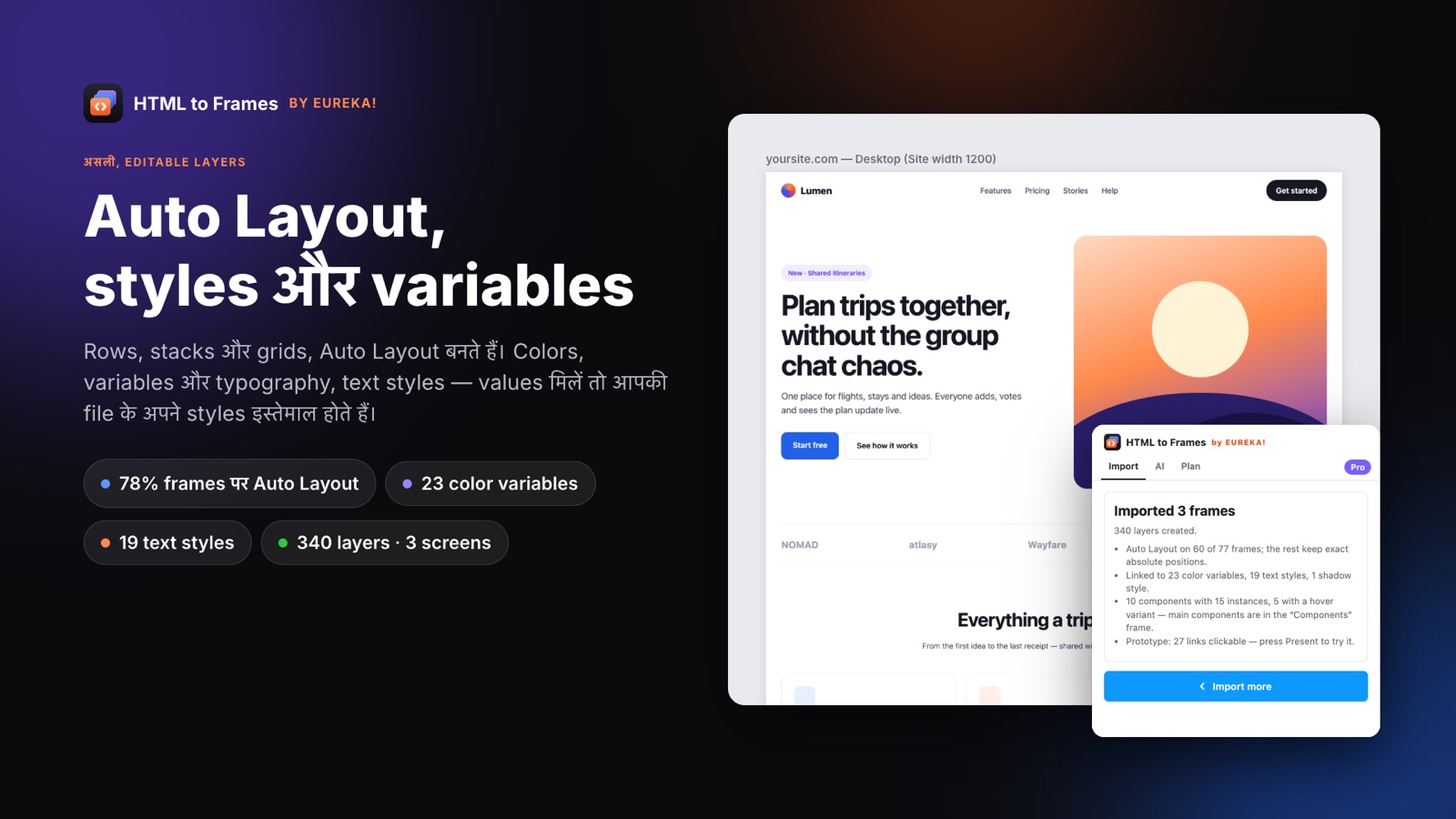
HTML to design, आम handoff का उल्टा है: mockup से कोड बनाने की बजाय, आप live कोड से वापस design file बनाते हैं। Teams इसकी ज़रूरत तब महसूस करती हैं जब Figma file production से पीछे छूट गई हो, जब कोई client बिना किसी source file के site सौंप दे, या जब redesign दो साल पुराने mockup से नहीं, बल्कि उससे शुरू करना हो जो users आज देख रहे हैं।
ज़्यादातर reverse workflows की दिक़्क़त यह है कि नतीजा आगे काम का नहीं होता। आपको page की एक तस्वीर मिलती है, या hard-coded hex values वाले बिखरे rectangles, और फिर कोई एक हफ़्ता हाथ से styles दोबारा बनाने में लगाता है। HTML to Frames ऐसी file बनाने के लिए बना है जिसे आप सच में आगे संभाल सकें। Pro पर यह कम से कम दो बार इस्तेमाल हुए colors और site की CSS custom properties से color variables निकालता है, यानी --brand-primary, Colors · <domain> collection में brand/primary बन जाता है। साथ में text styles और shadow styles बनती हैं, और cards, buttons और menu items जैसे बार-बार आने वाले structures, instances वाले components बन जाते हैं।
अगर आपकी team के पास Figma में पहले से design system है, तो plugin उससे टकराता नहीं। मेल खाने वाले variables और styles दोबारा इस्तेमाल होते हैं, और Snap चालू हो तो जिन values का exact match नहीं है, वे आपकी file के सबसे क़रीबी color या text style से जुड़ जाती हैं। एक ही site दो बार import करने पर कुछ नया नहीं बनता।
नतीजा: ऐसी design file जो शुरुआत से ही व्यवस्थित है। पूरी प्रक्रिया के लिए HTML to design workflow गाइड पढ़ें, बुनियादी conversion कैसे काम करता है यह HTML to Figma पर देखें, या हर plan में क्या है इसकी तुलना कीमतों वाले page पर करें।
Production कोड से काम की design file तक
- 01
Live pages import करें
एक URL या 10 तक links paste करें, या build output हो तो site folder drop करें।
- 02
Styles & variables चालू करें
Color variables, text styles और shadow styles बनती हैं — आपकी file में जो पहले से मेल खाता है, वही इस्तेमाल होता है।
- 03
अपने system के लिए Snap चालू करें
System से बाहर की values लगभग-duplicate बनाने की बजाय आपके सबसे क़रीबी color या text style से जुड़ जाती हैं।
- 04
Components को व्यवस्थित करें
बार-बार आने वाले structures एक Components frame में components और instances बनकर आते हैं — rename और document करने के लिए तैयार।
- 05
Redesign शुरू करें
मौजूदा product को शुरू से दोबारा बनाने की बजाय, Auto Layout वाले असली layouts पर ही काम आगे बढ़ाएँ।
सिर्फ़ layers नहीं, design system वाला output
Color variables
बार-बार आने वाले colors और CSS custom properties से 96 तक color variables, हर domain के लिए एक collection में।
Text और shadow styles
48 तक text styles, साथ में sm, md, lg और xl sizes की shadow styles।
आपके styles से मिलान (Snap)
Colors के लिए perceptual OKLab distance, और text के लिए वही family, weight और 10% के अंदर size।
अपने-आप बनने वाले components
दोहराए जाने वाले cards, buttons और menu items, components और instances बनते हैं — text और image overrides बरक़रार रहते हैं।
Hover variants
जिन elements का hover look होता है, वे Default और Hover variants और on-hover interaction वाले component sets बनते हैं।
Light और Dark modes
दोनों color schemes, Light और Dark modes वाले एक variable collection में — साथ में हर screen की dark copy।
हाथ से design को reverse-engineer करना इतना धीमा क्यों है
किसी production page को Figma में आँख से देखकर दोबारा बनाने का मतलब है spacing नापना, colors उठाना, font sizes का अंदाज़ा लगाना और icons दोबारा बनाना। एक marketing page में पूरा दिन लग सकता है। दर्जनों screens वाले product में हफ़्ते लगते हैं, और फिर भी नतीजा असली values से भटक जाता है।
HTML to Frames values सीधे browser से पढ़ता है, इसलिए spacing, colors और type sizes अंदाज़े से नहीं, बिल्कुल सटीक आते हैं। SVG icons editable vectors बनते हैं। Layout, Auto Layout में बदला जाता है और 2 px के अंदर जाँचा जाता है; absolute positioning सिर्फ़ वहीं रहती है जहाँ Auto Layout से कुछ खिसक जाता।
इससे redesign का पहला दिन बिल्कुल बदल जाता है। उसे दोबारा बनाने में लगाने की बजाय, team मौजूदा product की सटीक copy से शुरू करती है और समय फ़ैसलों पर लगाती है:
- असल में कौन-से colors इस्तेमाल हो रहे हैं, और कौन-से ग़लती से बने लगभग-duplicates हैं?
- कौन-से components दोहराए जाते हैं, और असल में उनके कितने variants चल रहे हैं?
- Live layout, तय किए गए system से कहाँ अलग है?
Agencies इसे proposals तैयार करने में कैसे इस्तेमाल करती हैं, यह website to Figma redesign गाइड में है।
क्योंकि हर frame अपना source URL याद रखता है, अगली release के बाद आप page को re-import करके redesign से तुलना कर सकते हैं। Design file production से जुड़ी रहती है, बजाय एक और snapshot बनने के जो धीरे-धीरे पुराना पड़ जाए।
Variables और styles कैसे निकाले जाते हैं
Extraction का मक़सद हर element की एक style नहीं, बल्कि एक छोटा, काम का set बनाना है।
Colors
कोई color तब variable बनता है जब वह कम से कम दो बार इस्तेमाल हुआ हो, या site ने उसे CSS custom property के रूप में define किया हो। Custom property के नाम का structure बना रहता है: --brand-primary, brand/primary बनता है। 96 तक color variables एक Colors · <domain> collection में जाते हैं।
Text और shadows
Page पर असल में render हुई typography से 48 तक text styles बनती हैं। Shadows को sm, md, lg और xl styles में बाँटा जाता है।
पहले reuse, फिर नया
अगर आपकी file में उसी value का variable या style पहले से है, तो वही इस्तेमाल होता है। एक ही site दो बार import करें, तो कुछ नया नहीं बनता — इससे लंबे समय तक चलने वाली file साफ़ रहती है।
Light + Dark
Light + Dark color scheme चुनने पर page दोनों prefers-color-scheme settings में capture होता है और एक collection को दो modes मिलते हैं। Figma Free files में हर collection में एक ही mode हो सकता है, इसलिए वहाँ dark mode एक note के साथ छोड़ दिया जाता है।
यहाँ सब कुछ वैकल्पिक है। Styles & variables बंद कर दें तो raw values वाली सीधी layers मिलती हैं — जो कभी-कभी किसी quick reference या एक बार के teardown के लिए यही चाहिए होता है।
Snap: imports को आपके design system के अंदर रखना
Production कोड शायद ही कभी design system से पूरी तरह मेल खाता है। किसी button में #2161E9 हो सकता है जबकि token #2160E8 है, या कोई heading 32 px की जगह 31 px की हो। इन values को जस का तस import करने से आपकी file लगभग-duplicate styles से भर जाएगी।
Snap to my file's styles यही समस्या सुलझाता है। जब exact match नहीं मिलता, तो plugin perceptual OKLab distance से आपकी file का सबसे क़रीबी color ढूँढता है, और वही font family व weight और 10% के अंदर size वाली सबसे क़रीबी text style। फिर import की गई layers नए styles की बजाय आपके styles से bind होती हैं।
यह तीन स्थितियों में काम आता है:
- Audits, जब आप product को official system की भाषा में देखना चाहते हैं।
- Redesigns, जिन्हें पहले frame से ही system के अंदर शुरू होना चाहिए।
- Competitive teardown, जब आप किसी और के layout को अपने tokens से restyle करते हैं।
Snap, Styles & variables और Components & hover states, Pro फ़ीचर्स हैं। Plugin आपकी file का content ज़रूरत से ज़्यादा कभी नहीं पढ़ता; वह layers लिखता है और सिर्फ़ अपने frames का metadata पढ़ता है, जैसा security और data handling page पर बताया गया है।
Snap सबसे अच्छा तब काम करता है जब आपकी file में पहले से published color और text styles हों। एक छोटी, साफ़ library से शुरू करें, एक प्रतिनिधि page import करें, और बाक़ी site पर बड़ा Multiple import चलाने से पहले देख लें कि कौन-सी values snap हुईं।
अक्सर पूछे जाने वाले सवाल
इसका मतलब है live कोड या published website को वापस editable design file में बदलना। पहले design और फिर कोड की बजाय, आप वह import करते हैं जो पहले से बना है, ताकि design file फिर से production से मेल खाए। यह redesigns, audits और बिना source files के मिली sites के लिए काम आता है।
Pro पर, हाँ। कम से कम दो बार इस्तेमाल हुए colors और CSS custom properties के रूप में define किए गए colors, variables बनते हैं। --brand-primary जैसी property, domain के नाम वाले Colors collection में brand/primary बन जाती है। हर import में 96 तक color variables बनते हैं।
नहीं। Values मेल खाने पर आपकी file में पहले से मौजूद variables और styles दोबारा इस्तेमाल होते हैं, और एक ही site दो बार import करने पर कुछ नया नहीं बनता। Snap चालू हो तो जिन values का exact match नहीं है, वे नए styles बनाने की बजाय आपके सबसे क़रीबी color या text style से bind होती हैं।
Cards, buttons और menu items जैसे बार-बार आने वाले structures पहचाने जाते हैं और instances वाले components में बदले जाते हैं, जिनमें text और image overrides बरक़रार रहते हैं। जिन elements का अलग hover look होता है, वे Default और Hover variants वाले component sets बनते हैं। Main components एक अलग Components frame में रखे जाते हैं।
हाँ, Pro पर। Color scheme में Light + Dark चुनें, और page दोनों settings में capture होता है। आपको Light और Dark modes वाला एक variable collection और हर screen की एक dark copy मिलती है। Figma Free files में हर collection में एक ही mode हो सकता है, इसलिए वहाँ dark mode छोड़ दिया जाता है।
नहीं। ज़्यादातर sites के लिए एक public URL काफ़ी है। अगर आपके पास build output है, तो site folder या .zip drop कर सकते हैं, और login वाले pages के लिए मुफ़्त Chrome extension वही capture करता है जो आपका browser दिखाता है। हर रास्ते से एक जैसा editable नतीजा मिलता है।
इनसे जुड़ा
Web pages को दोबारा हाथ से बनाना अब बंद।
Link paste कीजिए और कुछ ही सेकंड में असली, editable, responsive Figma layers पाइए। शुरुआत मुफ़्त है — हर महीने 10 imports।
Credit card की ज़रूरत नहीं। Pro सीधे Figma के अंदर ही ख़रीदा जाता है।
जल्द ही Figma Community पर