Free Chrome extension
Chrome extension to Figma for logged-in pages and localhost
Capture what your own browser shows, including dashboards, local builds and open menus, and turn it into editable Figma layers.
- Works with logins, localhost and private networks
- Capture the whole page or one element
- No account, no analytics, no remote code
Coming soon to Chrome Web Store
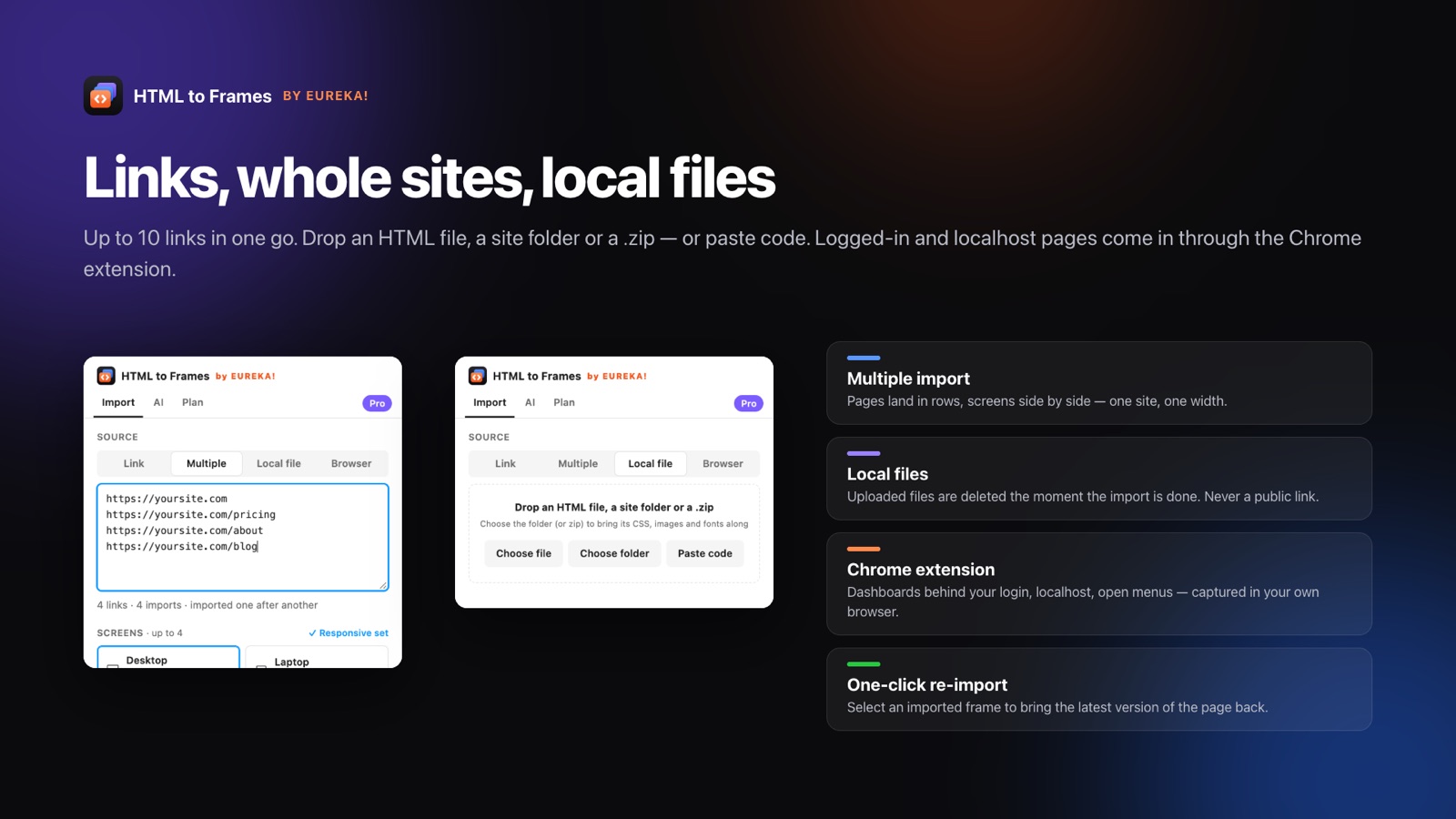
A Chrome extension to Figma solves the cases a URL import cannot reach. The HTML to Frames capture service visits pages as an anonymous visitor, so it cannot see your admin dashboard, the app behind your login, a localhost build on your laptop or a staging server on a private network. The free HTML to Frames Chrome extension captures from your own browser instead, using the session you are already signed into.
It also captures the page's current state. If a dropdown is open, a form is half filled, a modal is showing or a cart has three items in it, that is what lands in Figma. For product managers documenting flows and designers auditing real states, this is often the only practical way to get those screens into a design file without recreating them.
You can capture the whole page, or switch to the element picker to grab a single component. Hover to highlight, use the arrow keys to move to the parent or child element, press Enter to capture and Esc to cancel. The capture goes to your clipboard, or a .h2f file, and you paste it into the plugin's Browser tab. Or connect the extension to your plugin once with a one-time code and use Send to Figma, which delivers captures straight into the open plugin.
The resulting layers are the same as any other import: editable text, vectors, images and verified Auto Layout. A capture counts as one import.
Front-end developers will find a full walkthrough in localhost to Figma with the Chrome extension. For public pages, URL to Figma needs no extension at all, and the security page explains exactly what the extension sends.
Capturing a tab with the extension
- 01
Install the Chrome extension
Add the free HTML to Frames extension to Chrome; it needs no account.
- 02
Open the page in the state you want
Sign in, start your local server, open the menu or fill the form exactly as you want it captured.
- 03
Capture the page or an element
Take the whole page, or use the picker to highlight and select one element.
- 04
Paste or send to Figma
Paste into the plugin's Browser tab, or use Send to Figma after pairing once with a one-time code.
What the extension can reach
Logged-in pages
Dashboards, admin panels and account pages captured with the session you already have.
localhost and private networks
Local dev servers, staging and intranet pages that an outside service cannot reach.
Exact UI states
Open menus, filled forms, modals and carts are captured as they are on screen.
Element picker
Hover to highlight, arrow up or down to move between parent and child, Enter to capture.
Send to Figma
Pair once with a one-time code and captures go straight into your open plugin.
Private by design
No account, no analytics, no remote code; nothing is sent unless you use Send to Figma.
localhost to Figma for front-end developers
Developers often need to show designers what was actually built, or bring a coded prototype into Figma for review. The usual options are screenshots, which nobody can edit, or rebuilding the screen by hand. The extension gives a third option: capture localhost directly.
Because it runs in your own browser, the extension sees exactly what your dev server renders, including:
- Feature branches that are not deployed anywhere yet
- Pages that depend on local data or mocked APIs
- Staging environments on a VPN or private network
- Component playgrounds and isolated story pages
Use the element picker to capture a single component rather than the whole page. Highlight it, press the up arrow to step out to its container if you need the padding, and press Enter. The result is a frame with Auto Layout inferred from the rendered CSS, so a flexbox row arrives as a horizontal Auto Layout frame with its gaps and padding.
This turns handoff into a two-way street: designers get editable frames of the real implementation and can comment on, or adjust, what shipped. The CSS flexbox and grid to Auto Layout guide shows how layouts map across.
Pasting vs. Send to Figma
There are two ways to get a capture from Chrome into Figma, and both produce the same layers.
Paste
After a capture, the result is placed on your clipboard. Switch to Figma, open HTML to Frames, go to the Browser tab and paste. If you prefer, save the capture as a .h2f file instead and bring it into the plugin later. Nothing leaves your computer in this flow.
Send to Figma
Connect the extension to your plugin once using a one-time code. After that, each capture goes straight into the open plugin without the clipboard step, which is faster when you are capturing several states in a row.
With Send to Figma, the capture is held in memory on our side until your plugin picks it up, for a maximum of 30 minutes. It is not written to disk.
| Paste | Send to Figma | |
|---|---|---|
| Setup | None | One-time pairing code |
| Data leaves your computer | No | Held in memory up to 30 minutes |
| Best for | Occasional captures | Capturing many states quickly |
Either way, a capture counts as one import against your plan, and the layers you get are identical.
What the extension does and does not do with your data
An extension that can read logged-in pages deserves scrutiny. The HTML to Frames Chrome extension is designed to do as little as possible:
- It runs in your browser. Captures are made locally from the page you are viewing.
- No account. You do not sign up or sign in to use it.
- No analytics. There is no usage tracking in the extension.
- No remote code. The extension does not download and run code from a server.
- Nothing is sent by default. Data reaches us only if you choose Send to Figma, and then it waits in memory for your plugin for at most 30 minutes.
The capture only includes what is on the page you choose to capture. Before capturing a page that shows personal or customer data, consider whether that data should end up in a shared Figma file, and use the element picker to grab only the part you need.
On the Figma side, the plugin does not read your file's content. It writes the new layers and reads only its own frames' metadata. The security page describes the full setup, and the docs cover installation and pairing. The extension is being prepared for the Chrome Web Store.
Frequently asked questions
URL import loads pages as an anonymous visitor from our capture service, so it cannot reach logged-in pages, localhost or private networks, and it always sees the default state. The extension captures from your own browser, with your session and whatever state the page is in.
Yes. Switch to the element picker, hover to highlight an element, use the up arrow to move to its parent or the down arrow to its child, and press Enter to capture. Press Esc to cancel. The element arrives as its own frame with editable layers.
Pair the extension with your plugin once using a one-time code. After that, each capture is delivered straight into the open plugin. The capture waits in memory for at most 30 minutes until the plugin takes it, and is never written to disk.
No. It has no account, no analytics and no remote code. It sends nothing to us unless you use Send to Figma for a capture. When you paste instead, the capture moves through your clipboard or a .h2f file and never leaves your computer.
Yes. Each capture from the extension counts as one import on your plan. The Free plan includes 10 imports per month, and Pro and Team are unlimited within a fair-use allowance. Usage counters reset monthly in UTC, and a capture is counted only once.
Yes. The HTML to Frames Chrome extension itself is free and needs no account. Captures are imported through the Figma plugin and count toward your plan, which starts with the Free tier. The extension is being prepared for publication on the Chrome Web Store.
Related
Stop redrawing the web.
Paste a link and get real, editable, responsive Figma layers in seconds. Free to start — 10 imports every month.
No credit card. Pro is bought inside Figma.
Coming soon to Figma Community