Code back to design
HTML to design: rebuild the design file your code drifted from
When the shipped product no longer matches the mockups, import it back. HTML to Frames turns the live HTML into a Figma file with variables, styles and components.
- Color variables from your site's CSS custom properties
- Repeated cards and buttons become components
- Snaps to your existing design system
Coming soon to Figma Community
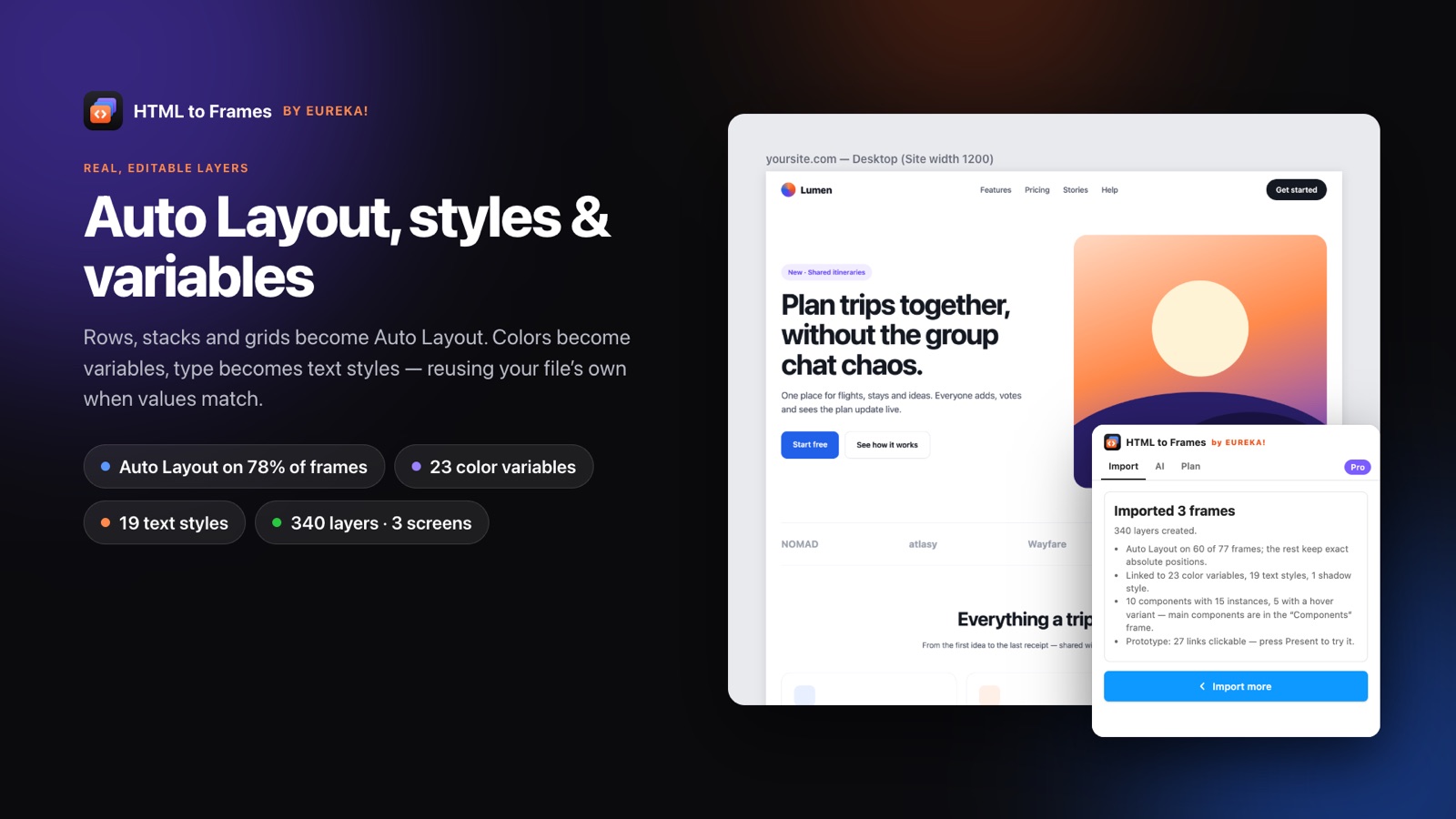
HTML to design is the reverse of the usual handoff: instead of turning a mockup into code, you turn shipped code back into a design file. Teams reach for it when the Figma file has fallen behind production, when a client hands over a site without any source files, or when a redesign has to start from what users see today rather than from a two-year-old mockup.
The problem with most reverse workflows is that the output is a dead end. You get a picture of the page, or loose rectangles with hard-coded hex values, and someone spends a week rebuilding styles by hand. HTML to Frames is built to produce a file you can actually maintain. On Pro, it extracts color variables from colors used at least twice and from the site's CSS custom properties, so --brand-primary becomes brand/primary in a Colors · <domain> collection. Text styles and shadow styles are created alongside them, and repeated structures such as cards, buttons and menu items become components with instances.
If your team already has a design system in Figma, the plugin does not compete with it. Matching variables and styles are reused, and with Snap enabled, values without an exact match snap to the closest color or text style from your own file. Importing the same site twice creates nothing new.
The result is a design file that starts organized. Read the HTML to design workflow guide for a full walkthrough, see how the base conversion works on HTML to Figma, or compare what each plan includes on pricing.
From production code to a working design file
- 01
Import the live pages
Paste a URL or up to 10 links, or drop the site folder if you have the build output.
- 02
Turn on Styles & variables
Color variables, text styles and shadow styles are created, reusing anything that already matches in your file.
- 03
Enable Snap for your system
Off-system values snap to your closest color or text style instead of creating near-duplicates.
- 04
Clean up components
Repeated structures arrive as components and instances in a Components frame, ready to rename and document.
- 05
Start the redesign
Iterate on real layouts with Auto Layout instead of redrawing the current product from scratch.
Design-system output, not just layers
Color variables
Up to 96 color variables from repeated colors and CSS custom properties, grouped in one collection per domain.
Text and shadow styles
Up to 48 text styles plus shadow styles in sm, md, lg and xl sizes.
Snap to your styles
Uses perceptual OKLab distance for colors and matching family, weight and size within 10% for text.
Automatic components
Cards, buttons and menu items that repeat become components and instances with text and image overrides kept.
Hover variants
Elements with a hover look become component sets with Default and Hover variants and an on-hover interaction.
Light and Dark modes
Capture both color schemes into one variable collection with Light and Dark modes, plus a dark copy of each screen.
Why reverse-engineering a design by hand is slow
Rebuilding a production page in Figma by eye means measuring spacing, sampling colors, guessing font sizes and redrawing icons. A single marketing page can take a day. A product with dozens of screens takes weeks, and the result still drifts from the real values.
HTML to Frames reads values directly from the browser, so spacing, colors and type sizes are exact rather than approximated. SVG icons become editable vectors. Layout is translated into Auto Layout and verified within 2 px, with absolute positioning kept only where Auto Layout would move something.
That changes what the first day of a redesign looks like. Instead of spending it on reconstruction, the team starts with an accurate copy of the current product and spends the time on decisions:
- Which colors are actually in use, and which are accidental near-duplicates?
- Which components repeat, and how many variants exist in the wild?
- Where does the shipped layout differ from the intended system?
The website to Figma redesign guide covers how agencies use this to prepare proposals.
Because each frame keeps its source URL, you can re-import a page after the next release and compare it against the redesign. The design file stays connected to production instead of becoming another snapshot that slowly drifts out of date.
How variables and styles are extracted
Extraction is designed to produce a small, usable set rather than one style per element.
Colors
A color becomes a variable when it is used at least twice, or when the site defines it as a CSS custom property. Custom property names are kept as structure: --brand-primary becomes brand/primary. Up to 96 color variables go into a Colors · <domain> collection.
Text and shadows
Up to 48 text styles are created from the type actually rendered on the page. Shadows are grouped into sm, md, lg and xl styles.
Reuse before create
If your file already has a variable or style with the same value, it is reused. Import the same site twice and nothing new is created, which keeps a long-lived file tidy.
Light + Dark
With the Light + Dark color scheme, the page is captured under both prefers-color-scheme settings and one collection gets two modes. Figma Free files allow only one mode per collection, so in that case the dark mode is skipped with a note.
Everything here stays optional. Turn Styles & variables off and you get plain layers with raw values, which is sometimes what you want for a quick reference or a one-off teardown.
Snap: keeping imports inside your design system
Production code rarely matches a design system perfectly. A button might use #2161E9 where the token is #2160E8, or a heading might be 31 px instead of 32 px. Importing those values literally would flood your file with near-duplicate styles.
Snap to my file's styles solves this. When there is no exact match, the plugin looks for the closest color in your file using perceptual OKLab distance, and the closest text style with the same font family and weight and a size within 10%. Imported layers are then bound to your styles instead of new ones.
This is useful in three situations:
- Audits where you want to see the product expressed in the official system.
- Redesigns that should start on-system from the first frame.
- Competitive teardown where you restyle another layout with your own tokens.
Snap, Styles & variables, and Components & hover states are Pro features. The plugin never reads your file content beyond what it needs; it writes layers and reads only its own frames' metadata, as described on the security page.
Snap works best when your file already contains published color and text styles. Start with a small, clean library, import one representative page, and check which values snapped before running a larger Multiple import across the rest of the site.
Frequently asked questions
It describes turning live code or a published website back into an editable design file. Instead of designing first and coding second, you import what is already built so the design file matches production again, which is useful for redesigns, audits and sites delivered without source files.
On Pro, yes. Colors used at least twice and colors defined as CSS custom properties become variables. A property like --brand-primary becomes brand/primary inside a Colors collection named after the domain. Up to 96 color variables are created per import.
No. Variables and styles already in your file are reused when the values match, and importing the same site twice creates nothing new. With Snap enabled, values without an exact match are bound to your closest existing color or text style instead of creating new ones.
Repeated structures such as cards, buttons and menu items are detected and turned into components with instances, keeping text and image overrides. Elements with a distinct hover look become component sets with Default and Hover variants. Main components are placed in a separate Components frame.
Yes, on Pro. Choose Light + Dark as the color scheme and the page is captured under both settings. You get one variable collection with Light and Dark modes plus a dark copy of each screen. Figma Free files allow one mode per collection, so dark mode is skipped there.
No. A public URL is enough for most sites. If you have the build output, you can drop a site folder or .zip, and for pages behind a login the free Chrome extension captures what your browser shows. All routes produce the same editable result.
Related
Stop redrawing the web.
Paste a link and get real, editable, responsive Figma layers in seconds. Free to start — 10 imports every month.
No credit card. Pro is bought inside Figma.
Coming soon to Figma Community