Pixels vs. layers
HTML to canvas, as layers you can edit on the Figma canvas
Bitmap screenshot libraries give you pixels. HTML to Frames puts the page on your Figma canvas as vectors, text and frames you can change.
- Editable text and SVG vectors, not a raster image
- Real canvas and WebGL boxes kept as an image of that box
- Animations frozen for a clean, consistent frame
Coming soon to Figma Community
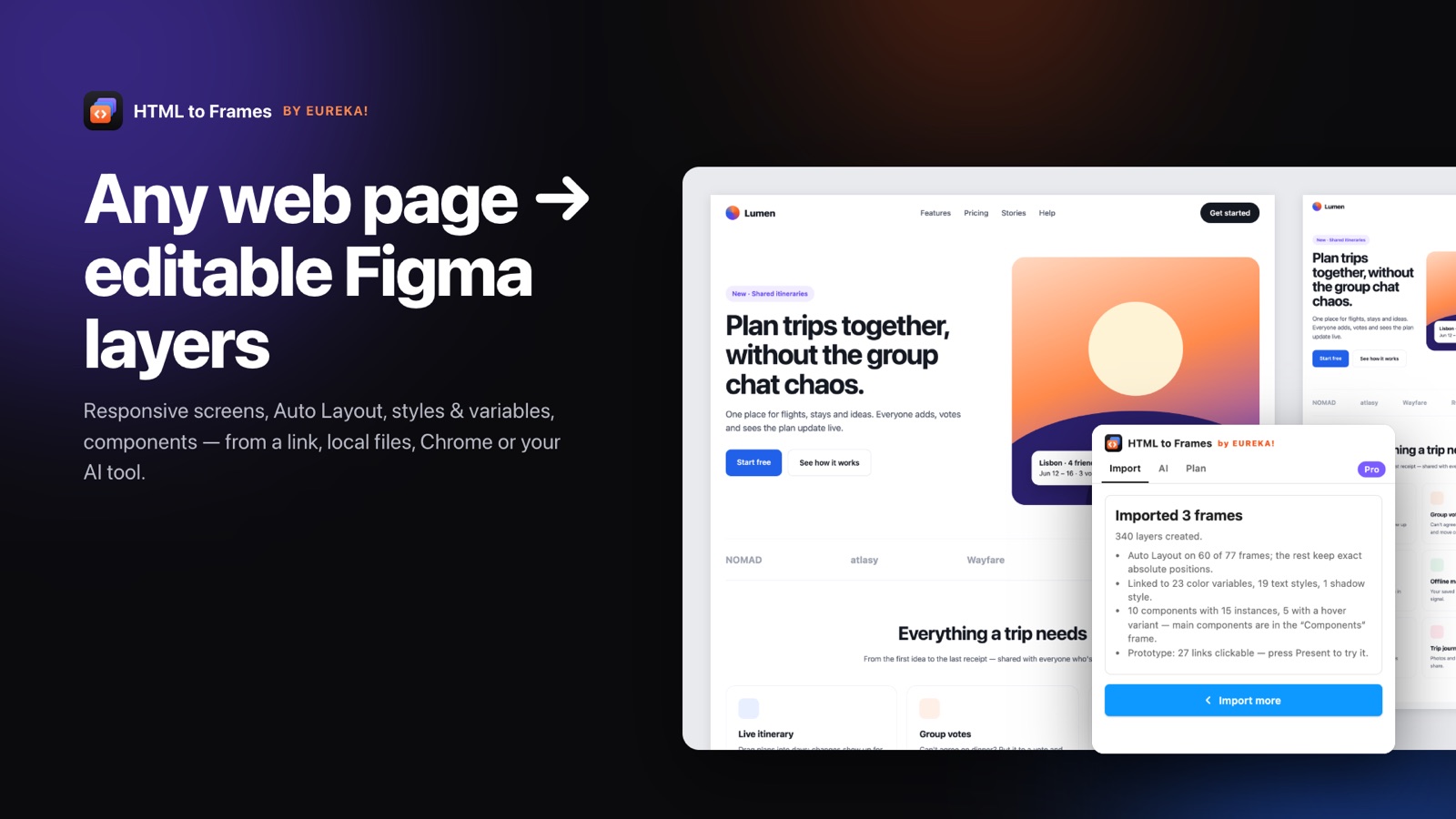
"HTML to canvas" means two different things, and it helps to separate them before choosing a tool. Developers often mean html2canvas, the JavaScript library that walks the DOM and paints an approximation of the page into a <canvas> element, or a browser screenshot that captures the visible pixels. Designers usually mean something else: getting a web page onto the Figma canvas so they can work with it.
Both produce something that looks like the page, but only one gives you something to work with. A bitmap, however sharp, is a grid of colored pixels. You cannot correct a typo, change a font size, recolor a button or pull a card into a new layout. You can only crop, scale and paint over it.
HTML to Frames, a Figma plugin by EUREKA!, takes the second meaning literally. It renders the page in a real browser, reads the computed geometry and styles of every element, and recreates the page on your Figma canvas as native layers: frames that mirror the page structure, editable text with its original styles, SVG converted to vectors and images placed with their original fit. Layout is converted to Auto Layout where it can be verified, so the result also responds when you resize it.
There is one case where pixels are the right answer, and the plugin handles it deliberately. A real <canvas> element or a WebGL scene has no DOM inside it to rebuild, so that box comes in as a screenshot image while the rest of the page stays editable.
For the long version of this comparison, read HTML to canvas vs. editable layers. To see the core conversion, start with HTML to Figma, or browse what is converted on the features page.
Putting a page on your Figma canvas
- 01
Choose where the page comes from
A URL, a local file or folder, pasted HTML and CSS, a Chrome tab, or an AI tool over MCP.
- 02
Let the browser render it
The page loads in an isolated browser, animations are frozen and WebGL is frozen after a few frames.
- 03
Get layers on the canvas
Frames, text, vectors and images are placed on your current Figma page, ready to edit.
Why layers beat a bitmap on the canvas
Text stays text
Headlines and body copy arrive as editable text with letter-spacing, line-height and mixed styles intact.
SVG becomes vectors
Icons and logos are converted to editable vector layers you can recolor and resize without blur.
Structure you can select
Nested frames follow the page structure, so you can pick a single card instead of cropping an image.
Pixels only where needed
Iframes, videos without a poster and WebGL or 3D canvas boxes come in as a screenshot image of that box.
Frozen, clean capture
Animations are paused for a consistent frame, so you do not get half-faded elements.
Reference layer
On Pro, a hidden, locked screenshot layer lets you compare the rebuild against the original pixels.
html2canvas and screenshots vs. editable layers
Screenshot approaches and HTML to Frames start from the same rendered page but end in very different places.
| html2canvas / browser screenshot | HTML to Frames on the Figma canvas | |
|---|---|---|
| Output | One raster image | Frames, text, vectors and images |
| Editing text | Not possible | Edit in place |
| Scaling | Blurs beyond 1x | Vectors stay sharp |
| Layout | Fixed pixels | Auto Layout where verified, constraints elsewhere |
| Selecting one element | Crop by hand | Click the frame |
| Typical use | Bug reports, thumbnails, previews | Redesigns, audits, handoff, design systems |
html2canvas also re-implements CSS rendering in JavaScript, so it can miss features the browser supports. HTML to Frames reads values from a real Chromium-based browser after it has done the rendering, then maps them onto Figma properties: gradients including conic and repeating ones, shadows, blend modes, blur and backdrop-blur, clip-path, mask-image and more.
Screenshots still have their place. If you need a quick visual record, a bitmap is fine. If you intend to change anything, layers save you from redrawing the page.
A useful rule of thumb: if the next step is a comment or a ticket, a screenshot is enough. If the next step is opening Figma and changing something, import layers instead.
What happens to a real <canvas> or WebGL element
Some content on a page is already pixels. A <canvas> element draws with JavaScript, and a WebGL scene renders 3D graphics on the GPU. There is no DOM inside these boxes to read, so no tool can turn them into meaningful vector layers.
HTML to Frames handles them explicitly rather than failing silently:
- The box is captured as a screenshot image at its exact position and size.
- WebGL scenes are frozen after a few frames, so you get a stable image rather than a blank or mid-transition frame.
- Everything around the box, such as headings, buttons and overlays positioned on top of it, stays as editable layers.
The same rule applies to other embedded content that cannot be layers: iframes such as maps, videos without a poster image, and object or embed elements. Each becomes an image of its own box, and the results screen lists any warnings.
In practice this means a landing page with a 3D hero still converts into a usable design. You can swap the hero image for a new visual, rewrite the copy above it and adjust spacing, while the rest of the page keeps its Auto Layout. See how that layout is inferred in Auto Layout explained.
Getting a clean frame from a moving page
Modern pages move: carousels rotate, elements fade in on scroll, cookie banners slide up and hero sections animate on load. A naive capture freezes whatever was happening at that millisecond.
HTML to Frames captures the page as a normal visitor sees it, with a few controls to make the result predictable:
Frozen animations
Animations are frozen so the capture shows each element in a settled state instead of halfway through a transition.
Hide cookie banners & popups
Turn this option on and consent banners and popups are hidden before capture, so they do not cover the page on your canvas.
Extra wait
Slow pages that load content late can be given more time before capture. Extra wait is a Pro option.
Full page
Capture the whole scrolling page or just the first screen, depending on what you need.
These options apply whether the page comes from a URL, a local file or the Chrome extension. The extension is the right choice when you want a specific state, such as an open menu, rather than the default view.
If something is still captured mid-animation or missing, the results screen lists warnings, and a one-click re-import with a different option is usually the quickest fix.
Frequently asked questions
No. html2canvas is a JavaScript library that paints an approximation of the DOM into a bitmap. HTML to Frames is a Figma plugin that rebuilds the page on the Figma canvas as editable layers: frames, text, vectors and images, with Auto Layout where it can be verified.
Yes. Text comes in as native Figma text layers, including mixed styles within one paragraph, links, letter-spacing, line-height and text-transform. If a font is not available, a Missing fonts screen lets you pick a replacement before the page is built, and your choice is remembered.
They have no DOM inside them to rebuild, so each such box comes in as a screenshot image at its exact position and size. WebGL is frozen after a few frames to give a stable image. Everything around the box stays as editable layers.
Yes, on Pro. The Reference screenshot option adds a hidden, locked image layer under the import. Toggle it on whenever you want to compare the rebuilt layers against the original rendering, and leave it hidden the rest of the time so it does not get in the way.
Animations are frozen and, if you choose, cookie banners and popups are hidden, so the capture shows a settled page. A screenshot catches whatever was on screen at that moment. If you need a specific state, such as an open menu, use the Chrome extension.
Linear, radial and conic gradients, inner and outer shadows, text-shadow, opacity, blend modes, blur and backdrop-blur, clip-path, mask-image, rotation and scale. Not yet supported are skew and 3D transforms, path() clip-paths, multi-layer masks and Display-P3 colors. The full list is on the features page.
Related
Stop redrawing the web.
Paste a link and get real, editable, responsive Figma layers in seconds. Free to start — 10 imports every month.
No credit card. Pro is bought inside Figma.
Coming soon to Figma Community