Figma plugin
HTML to Figma, as editable layers instead of a screenshot
HTML to Frames turns any web page into real Figma frames, text, vectors and images, with Auto Layout that is checked before it is kept.
- Five sources: link, multiple links, local files, Chrome tab, AI tools
- Auto Layout verified child by child, so the design never breaks
- Free plan with 10 imports per month
Coming soon to Figma Community
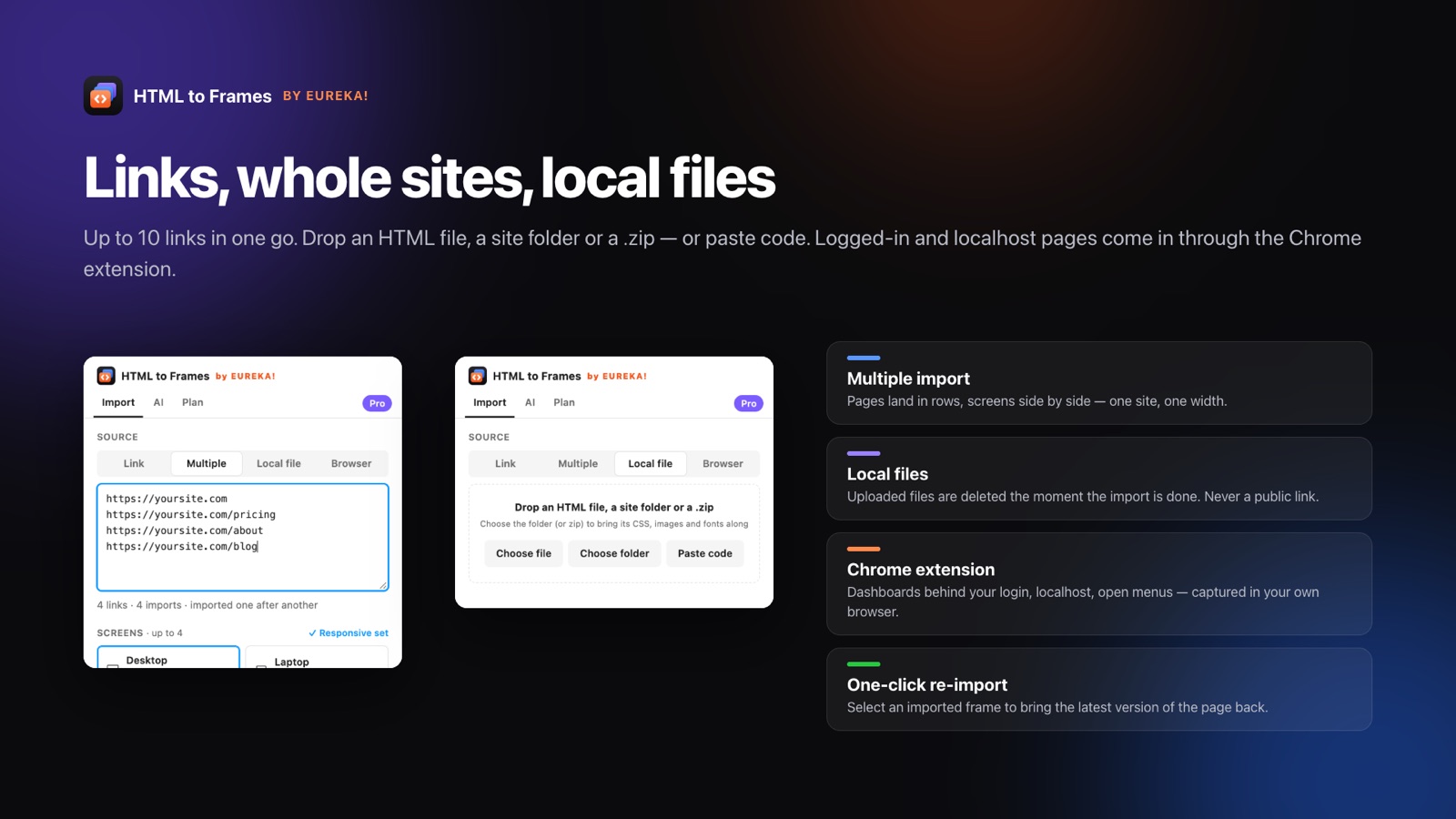
Converting HTML to Figma sounds simple until you open the result: a flat image you cannot edit, or a pile of absolutely positioned boxes that fall apart the moment you resize a frame. HTML to Frames, a Figma plugin by EUREKA!, takes a different route. It renders your page in a real browser, measures every element, and rebuilds it on your canvas as native Figma layers: frames, editable text with mixed styles, SVG converted to vectors, and images with their original fit and tiling.
The plugin first builds the page pixel-exact with absolute positions. Then it walks the frames from the inside out and infers stacks, wrapping rows, gaps, padding and alignment from the browser's geometry. Each Auto Layout plan is applied and every child's position is verified within a 2 px tolerance. If a plan does not hold, a simpler one is tried; if nothing fits, that frame keeps its absolute positions with sensible constraints. You get a file that behaves like something a designer built, not a trace.
You can bring HTML in from wherever it lives: a public URL, up to 10 links in one batch, a local HTML file, a site folder or .zip, pasted code, a tab in your own Chrome, or an AI tool connected over MCP. The features overview lists everything that gets converted, from gradients and shadows to ::before pseudo-elements and shadow DOM.
If you are new to the process, the step-by-step guide How to convert HTML to Figma walks through a first import. If you mainly work from live sites, see URL to Figma; for pages behind a login or on localhost, the Chrome extension is the right path. Pricing starts at $0 with 10 imports per month, and the pricing page covers what Pro adds.
How to convert HTML to Figma in four steps
- 01
Open the plugin and pick a source
Choose Link, Multiple, Local file, Browser or AI depending on where your HTML lives.
- 02
Choose screens and options
Select Desktop, Laptop, Tablet or Mobile, and toggle options such as Auto Layout, Images or Hide cookie banners & popups.
- 03
Resolve missing fonts
Before anything is built, a Missing fonts screen suggests replacements and remembers your choices per site.
- 04
Review the result
The results screen shows frames, layers, Auto Layout share and warnings, including why any frame stayed absolute.
What makes the conversion editable
Native layers, not pixels
Frames, text, vectors and images you can select, rename and restyle like anything drawn by hand.
Verified Auto Layout
Stacks, gaps, padding and alignment are inferred from measured geometry and checked within 2 px before they are kept.
Real text styling
Mixed styles, links, letter-spacing, line-height and text-transform come across as editable text.
Gradients, shadows, blur
Linear, radial and conic gradients, inner and outer shadows, blend modes, blur and backdrop-blur are preserved.
Responsive screens
Capture Desktop, Laptop 1280, Tablet 768 and Mobile 390, or a full responsive set in one click on Pro.
Five ways in
Import from a link, up to 10 links, local files, a Chrome tab or an AI tool over MCP.
Editable layers vs. a screenshot
Many tools that promise HTML to Figma conversion paste a picture of the page. That works for a mood board, but it stops there: you cannot change a headline, swap a color or move a card. HTML to Frames rebuilds the structure instead.
| Screenshot import | HTML to Frames | |
|---|---|---|
| Text | Pixels | Editable text with mixed styles |
| Icons and logos | Pixels | SVG converted to editable vectors |
| Layout | Flat image | Nested frames with verified Auto Layout |
| Colors | Sampled by eye | Exact values, optional color variables (Pro) |
| Resizing | Stretches the image | Auto Layout and constraints respond |
There is one honest exception. Content that cannot exist as layers, such as an embedded map iframe, a video without a poster, or a WebGL scene, comes in as a screenshot image of that specific box. The rest of the page stays editable around it, so a hero with a background video still gives you editable headlines, buttons and navigation.
If you want a pixel reference anyway, Pro includes a Reference screenshot option: a hidden, locked layer placed under the import so you can compare the rebuild against the original at any time. For a deeper look at the difference, read HTML to canvas vs. editable layers.
Five sources, one result
Every source ends in the same kind of output, so you can pick whichever fits your situation.
Link and Multiple
Paste a public URL, or up to 10 links that are processed one after another. Each page lands as its own row on the canvas. Multiple import is available on every plan, including Free.
Local file
Drop a single HTML file, a whole site folder (then choose which pages), a .zip, or paste HTML and CSS directly. Uploads can be up to 30 MB and are deleted as soon as the import finishes.
Browser
The free Chrome extension captures what your browser sees: logged-in dashboards, localhost, private networks and the current state of a page, such as an open menu or a filled form. See Chrome extension to Figma.
AI tools
Connect Claude Code, Claude Desktop, Cursor or another MCP client from the plugin's AI tab, and generated pages land in your open plugin. Details are on AI to Figma.
Whichever source you choose, an import counts as one page with all of its screens, so a Desktop, Tablet and Mobile capture of the same page is a single import. Each frame stores its source URL, which means you can re-import it with one click when the live page changes.
What the converter handles
Modern CSS is where most HTML to Figma tools lose fidelity. HTML to Frames reads the browser's computed result, so it handles a wide range of properties:
- Layout from flexbox and grid, translated into Auto Layout where it holds (see CSS flexbox and grid to Auto Layout)
- Borders, including a single side with a different color, and corner radius
- Images with
object-fit,background-size, tiling and high-ressrcset clip-path,mask-image,::beforeand::after, CSS counters and list markers drawn like Chrome- CSS rotation and scale, opacity,
filter: grayscale/opacity - Form fields, superscript and subscript, shadow DOM and z-index order
Some things are not supported yet: skew and 3D transforms, path() clip-paths, multi-layer masks and Display-P3 colors. We list these openly so you know what to expect before you import. The full list lives on the features page, and setup questions are answered in the docs.
When something cannot be represented exactly, the results screen tells you. It lists missing fonts, warnings, the share of frames that received Auto Layout and, for each frame that stayed absolute, the reason why. You never have to guess which parts of the conversion to double-check.
Frequently asked questions
No. HTML to Frames rebuilds the page as native Figma layers: frames, editable text, vectors from SVG and images. Only boxes that cannot be layers, such as map iframes, videos without a poster or WebGL canvases, come in as a screenshot of that box, while everything around them stays editable.
Five: a public link, up to 10 links in one Multiple import, local files (a single HTML file, a site folder, a .zip or pasted code), a tab in Chrome through the free extension, and AI tools such as Claude Code, Claude Desktop or Cursor connected over MCP.
Yes. After building the page pixel-exact, the plugin infers stacks, gaps, padding and alignment, applies them and verifies every child within 2 px. If a plan fails, a simpler one is tried; otherwise the frame keeps absolute positions with constraints, so the design does not break.
Yes. The Free plan includes 10 imports per month with one screen per import, and Multiple import of up to 10 links is included. Pro adds up to four screens per import, styles and variables, components, Light + Dark and more, at a launch price of $7 per month.
Pages are rendered in an isolated, sandboxed browser. The result is delivered once and then deleted from memory; it is never written to disk, and the job record is forgotten after 15 minutes. Uploaded files are deleted as soon as the import finishes.
Before building, the plugin shows a Missing fonts screen with suggested replacements. Your choices are remembered per site, or for every site if you prefer, so repeat imports of the same site do not ask again. Font mapping is available on every plan, including Free.
Stop redrawing the web.
Paste a link and get real, editable, responsive Figma layers in seconds. Free to start — 10 imports every month.
No credit card. Pro is bought inside Figma.
Coming soon to Figma Community