Frames that make sense
HTML to frame: each page and screen becomes a Figma frame
Top-level frames named after the page and screen, nested frames that follow the DOM, and Auto Layout that is verified before it is applied.
- Frame width measured from the real design
- Nested frames mirror the page structure
- Desktop, Tablet and Mobile frames in one import (Pro)
Coming soon to Figma Community
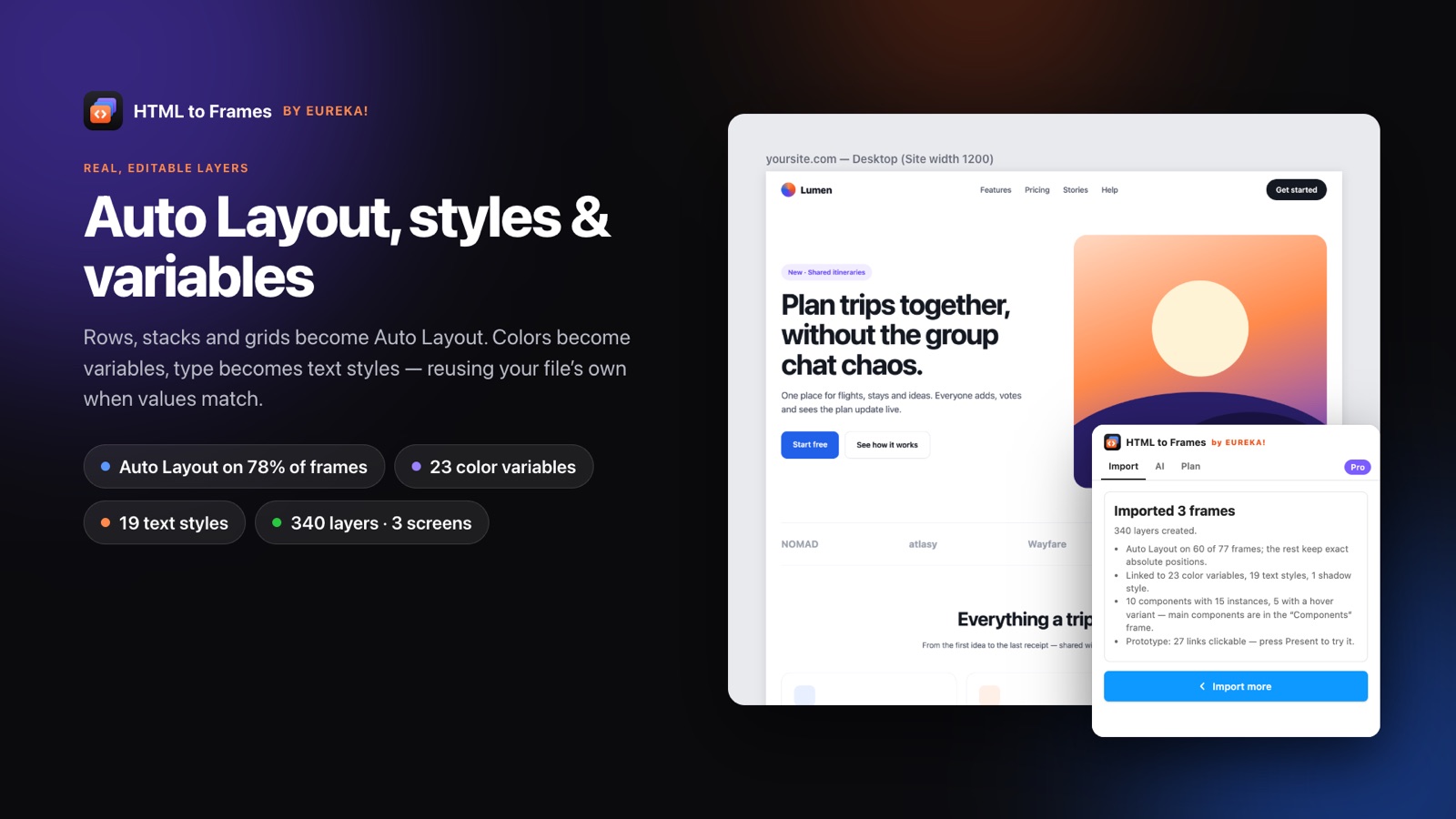
HTML to frame describes the output designers actually want from an import: not a single picture, but a Figma frame per page and screen, with a hierarchy of nested frames inside that makes sense when you open the layers panel. That is how HTML to Frames, the Figma plugin by EUREKA!, structures every import.
Each captured screen becomes one top-level frame with a predictable name, such as example.com/pricing — Desktop (1920). The protocol and www are dropped and names stay within 60 characters, so a multi-page import is easy to scan. Inside, containers on the page become frames, and those frames follow the DOM. A header frame holds a navigation frame, which holds link frames, much like the markup they came from.
Frame width is not a guess. The plugin measures the page's real design width at import time. Full-bleed designs get a 1920 frame with the content box centered, truly boxed sites get their box width, such as 1200, 1280 or 1440, and fluid sites get 1440. The same width is used for every page of a site in a multi-page import, so frames line up.
Where the layout allows, frames become Auto Layout frames. The plugin infers direction, gaps, padding, alignment and wrapping from the browser's measured geometry, applies the plan and checks every child within 2 px. Frames where that does not hold keep absolute positions with constraints, so nothing moves unexpectedly.
For the details of that engine, read Auto Layout explained. For the broader conversion, see HTML to Figma, and for many pages at once, website to Figma.
How a page turns into frames
- 01
Measure the site width
The plugin detects whether the design is full-bleed, boxed or fluid and picks the Desktop frame width accordingly.
- 02
Build pixel-exact frames
Every container becomes a frame at its measured position, mirroring the DOM hierarchy.
- 03
Infer Auto Layout inside-out
Starting from the innermost frames, stacks, wraps, gaps, padding and alignment are inferred and applied.
- 04
Verify or fall back
Each child is checked within 2 px; frames that do not hold try a simpler plan or keep absolute positions with constraints.
Frame-level details that save cleanup time
Measured site width
Desktop frames use the design's real width: 1920 for full-bleed, the box width for boxed sites, 1440 for fluid ones.
DOM-shaped hierarchy
Nested frames follow the page structure, so sections, cards and buttons are easy to find in the layers panel.
Auto Layout frames
Horizontal and vertical stacks, wrapping rows, gaps and padding, verified child by child.
Responsive intent
Centered content stays centered, equal cards fill, and the space between a logo and a menu becomes a Fill item.
Responsive set
Desktop, Tablet 768 and Mobile 390 frames of one page captured in parallel, counted as one import (Pro).
Re-import a frame
Each frame stores its source URL and width, so you can refresh it with one click.
Frame naming and site width
When you import ten pages across three screens, frame names matter. HTML to Frames uses one consistent pattern:
domain/path?query — Screen (width)
For example, shop.example.com/products?sort=new — Mobile (390). There is no protocol and no www, and names are capped at 60 characters so they stay readable on the canvas.
How the Desktop width is chosen
The Desktop screen is called Site width because it is measured, not guessed:
| Site type | Desktop frame width |
|---|---|
| Full-bleed design | 1920, content box centered |
| Truly boxed site | The box width, for example 1200, 1280 or 1440 |
| Fluid layout | 1440 |
One site gets one width across a multi-page import, so all Desktop frames line up in a row. Other screens use fixed widths: Laptop 1280, Tablet 768 and Mobile 390. On Pro you can also enter a Custom width when you need a specific breakpoint.
Every frame also stores its source URL and width, which is what makes one-click re-import possible later.
Consistent names also help outside Figma. When you share a link to a frame or export it, the name tells a developer exactly which page and breakpoint they are looking at.
Nested frames and Auto Layout, verified
Inside each top-level frame, the hierarchy mirrors the DOM. That makes the layers panel familiar to anyone who knows the markup, and it gives Auto Layout real containers to work with.
The engine works in a fixed order:
- Build the page pixel-exact with absolute positions.
- Walk the frames inside-out and infer vertical or horizontal stacks, wrapping rows, gaps, padding and alignment from measured geometry.
- Translate responsive meaning: centered content becomes Center, max-width boxes stay centered, equal cards and flex-grow items become Fill, and the gap between a logo and a menu becomes a Fill item.
- Apply the plan and verify every child's position within 2 px.
- If it does not hold, try a simpler plan; otherwise keep absolute positions.
Frames that stay absolute receive constraints such as Stretch, Scale, Center, Min or Max, so they still behave when resized. The results screen lists why each one stayed absolute.
In our tests on real sites, Auto Layout was inferred on roughly 86 to 97 percent of frames. The point is not the number but the guarantee behind it: the design never breaks. More on how CSS maps to frames in CSS flexbox and grid to Auto Layout.
One page, several screens: the responsive set
A single frame shows one breakpoint. Real design work usually needs at least three. With the Responsive set option, HTML to Frames captures Desktop, Tablet and Mobile of the same page in one click.
A few practical details:
- The screens of one page are captured in parallel, rather than one after another.
- One page with all its screens counts as one import, not three.
- Pro and Team allow up to four screens per import; the Free plan captures one screen per import.
- Each screen is its own top-level frame, named with the screen and width so you can tell them apart at a glance.
Because each screen is captured at its real width, you get the site's actual mobile layout, not a desktop frame squeezed narrower. Navigation that collapses into a menu button, grids that drop from four columns to one, and type that scales down all appear as the site renders them at that width, which makes the set a reliable starting point for responsive design reviews.
Combine responsive sets with Multiple import to capture several pages across breakpoints, and check the limits on the pricing page.
Frequently asked questions
It means each web page and screen becomes a Figma frame, with nested frames inside that mirror the page's DOM structure. HTML to Frames creates one top-level frame per page and screen, and converts the inner frames to Auto Layout wherever the result can be verified.
Top-level frames follow the pattern domain/path?query — Screen (width), for example example.com/pricing — Desktop (1920). The protocol and www are removed and names are kept to 60 characters, so large multi-page imports stay easy to scan on the canvas and in the layers panel.
The Desktop width is measured from the real design. Full-bleed designs get 1920 with the content box centered, truly boxed sites get their box width, such as 1200 or 1440, and fluid sites get 1440. One site keeps one width across a multi-page import.
Not necessarily. Auto Layout is applied only where every child stays within 2 px of its original position. Otherwise a simpler plan is tried, and if that fails the frame keeps absolute positions with constraints. The results screen explains why each frame stayed absolute.
Free captures one screen per import. Pro and Team capture up to four screens per import, including the one-click Responsive set of Desktop, Tablet and Mobile. All screens of one page count as a single import and are captured in parallel rather than one after another.
Yes. Every imported frame stores its source URL and width, so you can re-import it with one click when the live page changes. That keeps a design file in step with production without starting a new import from scratch or renaming frames again.
Related
Stop redrawing the web.
Paste a link and get real, editable, responsive Figma layers in seconds. Free to start — 10 imports every month.
No credit card. Pro is bought inside Figma.
Coming soon to Figma Community