Paste a link
URL to Figma: paste a link, get editable layers
The fastest way into Figma. Paste any public URL and HTML to Frames renders, measures and rebuilds the page on your canvas.
- Rendered in an isolated, sandboxed browser
- Cookie banners and popups hidden on request
- Result delivered once, never written to disk
Coming soon to Figma Community
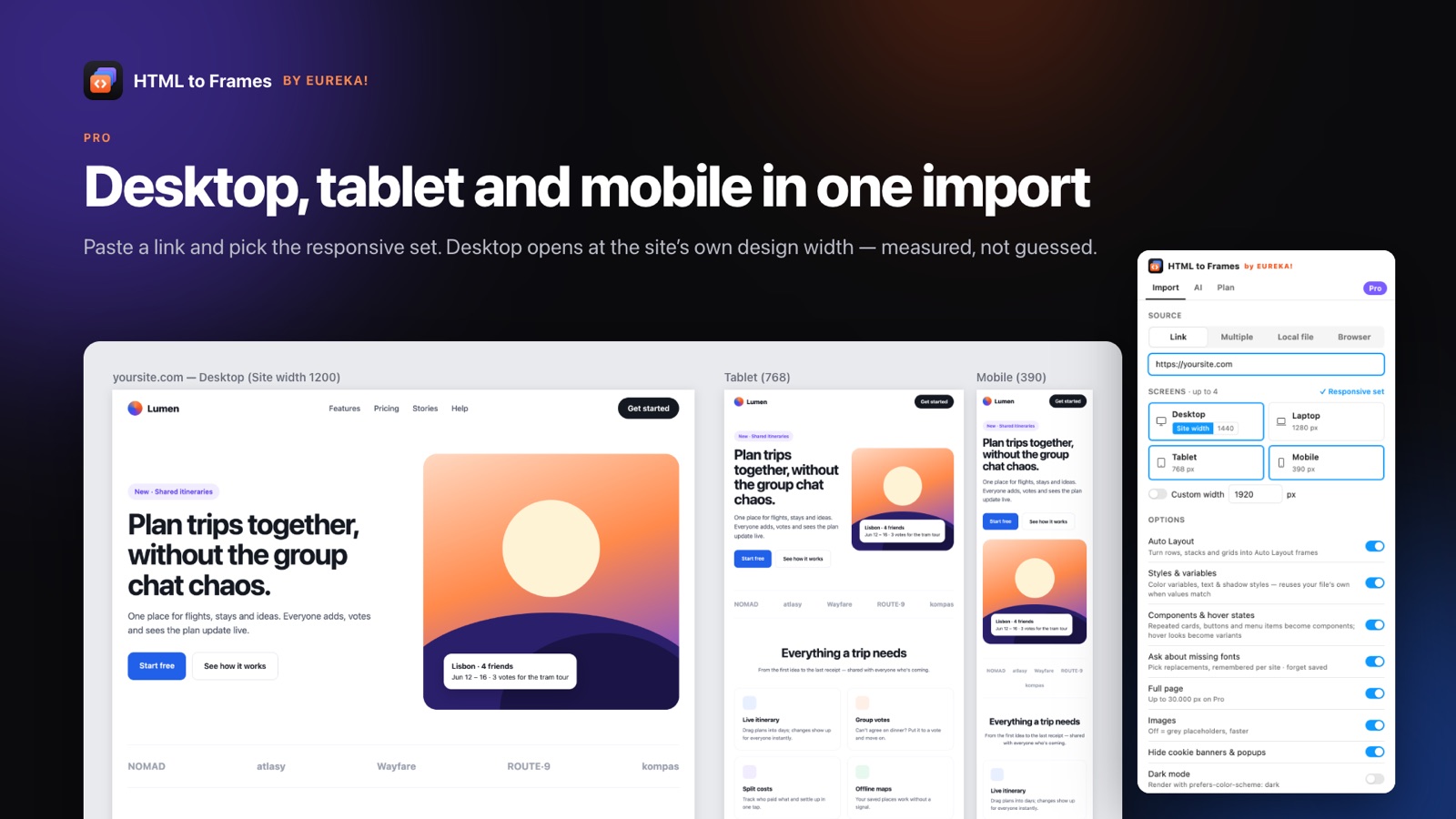
URL to Figma is the shortest path from a live page to an editable design: copy the address, paste it into the HTML to Frames plugin, choose a screen and import. No extension to install, no code to export, no files to upload. It is the right choice whenever the page is public, which covers competitor research, inspiration teardowns, client sites before a redesign and your own production pages.
A lot happens between the paste and the result. The page is loaded by the HTML to Frames capture service in an isolated, sandboxed browser, the same way a normal visitor would see it. If you ask, cookie banners and popups are hidden first. The page is scrolled so lazy-loaded content has a chance to appear, animations are frozen so you get a clean frame, and the real design width is measured so the Desktop frame matches how the site was built.
Then the plugin reads the computed layout and styles and builds native Figma layers on your canvas, with Auto Layout applied wherever it can be verified. Text is editable, SVG becomes vectors and images keep their fit.
Privacy is part of the design. The result is delivered to your plugin once and then deleted from memory. It is never written to disk, and the job record is forgotten after 15 minutes. The security page has the full architecture.
For pages behind a login or on localhost, use the Chrome extension instead. For many pages, see website to Figma. And for a first-time walkthrough, the guide How to convert HTML to Figma covers each option.
URL to Figma in three steps
- 01
Copy the page address
Any public URL works: a homepage, a product page, a blog post or a pricing table.
- 02
Paste it into the Link tab
Open HTML to Frames in Figma, paste the URL and pick a screen such as Desktop or Mobile.
- 03
Import
The page is rendered, measured and rebuilt as editable layers on your current Figma page.
What happens behind the paste
Isolated browser
Pages load in a sandboxed browser in its own container, separate from the API and image decoding.
Popups out of the way
Hide cookie banners & popups removes consent overlays before capture.
Lazy content loaded
The page is scrolled so content that loads on scroll is present, and animations are frozen.
Measured width
The Desktop frame uses the site's real design width instead of a fixed guess.
Extra wait for slow pages
On Pro, give heavy pages more time to finish loading before capture.
One-click re-import
The source URL is stored on the frame, so you can refresh it after the page changes.
Behind the scenes of a URL import
Pasting a link looks instant, but the capture service does several things to make the result match what a visitor sees.
- Isolated load. The page opens in a sandboxed Chromium browser running in its own container with seccomp restrictions. Every request passes SSRF protection, so a URL cannot be used to reach internal addresses.
- Clean-up. With Hide cookie banners & popups on, consent banners and overlays are removed before capture.
- Lazy content. The page is scrolled so images and sections that load on scroll are present when the capture runs.
- Stillness. Animations are frozen, and WebGL is frozen after a few frames, so nothing is captured mid-transition.
- Measurement. The real design width is measured: 1920 for full-bleed designs, the box width for boxed sites, 1440 for fluid ones.
- Delivery. The captured structure is delivered to your plugin once, then deleted from memory.
Images are processed by a separate decoder container with no internet access. The plugin then builds the layers locally in Figma and applies verified Auto Layout. For pages in other languages, the Page language option lets you choose one of 15 languages on multilingual sites. The docs explain each option.
Speed: choosing the right options
Most of the time a URL import needs nothing but the default options. When you want to tune it, a few settings make the biggest difference:
Screens
Each extra screen is another capture. Screens of one page run in parallel, and a full responsive set still counts as a single import. Free captures one screen per import; Pro and Team allow up to four.
Full page
Capturing the whole scrolling page gives you the complete design. Turn it off when you only need the top of the page.
Images
Leave images on for a finished look, or turn them off when you only care about layout and type.
Extra wait (Pro)
Some pages keep loading content after they appear ready. Extra wait gives them more time so late sections are included.
Detailed layers (Pro)
An option for when you want a more detailed layer tree to inspect, rather than the default structure.
If a page is cut by a plan limit, the result shows a visible purple Capture limit strip, so you always know whether you are looking at the whole page. For details on how plans differ, see pricing.
Privacy for URL imports
Pasting a URL means our capture service visits that page on your behalf, so it is fair to ask what happens to the data.
- Rendering happens in an isolated, sandboxed browser.
- The result is delivered to your plugin once, then deleted from memory. It is never written to disk.
- The job record is forgotten after 15 minutes.
- Logs are limited: the import log is kept for 180 days with the IP address removed after 30 days, and the security log for 90 days.
- No tracking: there are no cookies, analytics or tracking pixels in the plugin, the extension or the website, and data is never sold.
Your identity stays minimal too. The account identifier is derived from your Figma user id, and we never receive your name or email from Figma. The plugin does not read the content of your Figma file. It writes new layers and reads only the metadata of its own frames, such as source URL and width.
A URL import only works for pages the capture service can reach as an anonymous visitor. For anything behind a login, the Chrome extension captures in your own browser instead. Full details are on the security page.
Frequently asked questions
Any public web page the capture service can open as an anonymous visitor. Pages that need a login, local development servers on localhost and private network addresses cannot be reached this way; use the free Chrome extension for those, since it captures from your own browser.
Only if you want them. Turn on Hide cookie banners & popups and consent banners and overlays are hidden before capture, so they do not cover the page on your canvas. Leave it off if you are designing the banner itself.
The Desktop frame uses the measured design width, not your monitor. Full-bleed designs get 1920 with the content centered, boxed sites get their box width and fluid sites get 1440. Tablet 768, Mobile 390 and Laptop 1280 are fixed, and Pro adds Custom width.
Content that loads late can be missed on very slow pages. On Pro, Extra wait gives the page more time before capture. If a page was cut by a plan limit, a purple Capture limit strip marks it. The results screen also lists warnings.
No. Pages are rendered in an isolated browser and the result is delivered to your plugin once, then deleted from memory. It is never written to disk, and the job record is forgotten after 15 minutes. No cookies, analytics or tracking are used.
Yes. The source URL is stored on each frame, so you can re-import it with one click. This is useful for tracking a page across releases or refreshing a reference before a design review, without pasting the address again or redoing your import settings.
Stop redrawing the web.
Paste a link and get real, editable, responsive Figma layers in seconds. Free to start — 10 imports every month.
No credit card. Pro is bought inside Figma.
Coming soon to Figma Community