Figma HTML plugin
The Figma HTML plugin that builds layers you can actually edit
Run it inside Figma, paste a link or drop your HTML, and get frames, text and vectors with Auto Layout that has been checked against the real page.
- Works in any Figma Design file, no account needed
- Five sources: link, 10 links, files, Chrome, AI tools
- Free plan with 10 imports a month
Coming soon to Figma Community
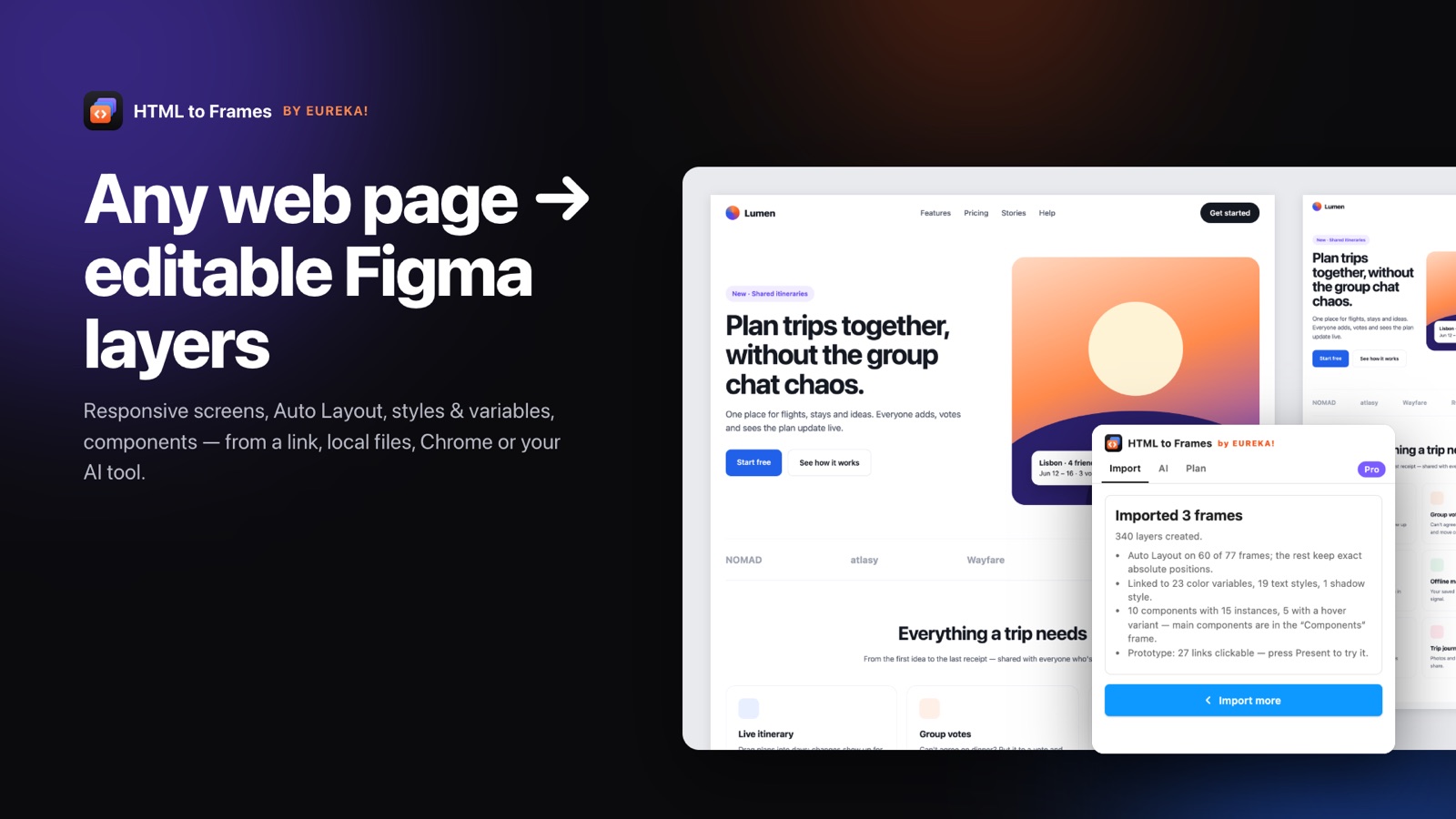
A Figma HTML plugin has one job: take something that exists as HTML and CSS and turn it into something you can design with in Figma. The difference between plugins is what “something you can design with” means. Some paste a screenshot. Some place hundreds of absolutely positioned boxes that collapse as soon as you resize a frame. HTML to Frames, a Figma plugin by EUREKA!, is built around a stricter standard: every frame, text layer and vector should behave as if a designer had built it by hand.
That is why the plugin works in two passes. First it rebuilds the page pixel-exact. Then it walks the frames from the inside out, infers stacks, wrapping rows, gaps, padding and alignment from the geometry the browser measured, applies Auto Layout and checks every child's position within 2 px. If a frame would move, the plugin tries a simpler plan or keeps the exact positions with sensible constraints. In our tests on real sites, Auto Layout was kept on roughly 86–97% of frames, and the design never breaks.
The plugin runs where you already work. Open it from Plugins → HTML to Frames in any Figma Design file, choose a source and press Import. There is no separate account to create: the Free plan starts automatically, and Pro is bought inside Figma with Figma's own checkout.
If you are comparing options, start with the HTML to Figma overview, see exactly what is converted on the features page, or read the honest comparison of HTML to Figma tools.
How to use the Figma HTML plugin
- 01
Open it in Figma
In a Figma Design file go to Plugins → HTML to Frames, or press ⌘/ and type the name.
- 02
Choose where the HTML lives
Link, Multiple (up to 10 links), Local file, Browser for the Chrome extension, or AI for MCP tools.
- 03
Pick screens and options
Desktop opens at the measured site width. Add Tablet and Mobile with Responsive set on Pro.
- 04
Import and edit
Frames arrive named by page and screen, with Auto Layout, editable text and vectors ready to change.
What to expect from a good Figma HTML plugin
Native layers, not a picture
Frames, editable text with mixed styles, SVG as vectors and images with their original fit and tiling.
Auto Layout that holds
Stacks, rows and grids become Auto Layout, verified within 2 px; frames that would move keep exact positions.
Responsive screens
Desktop at the site's measured width, plus Laptop, Tablet, Mobile or a custom width on Pro.
More than public URLs
HTML files, whole site folders, .zip archives and pasted code, opened in an isolated browser.
Design-system output
Color variables, text and shadow styles, components and hover variants on Pro, reusing what your file already has.
Private by design
The plugin never reads your file content. Results are delivered once and never written to disk.
Plugin, Chrome extension or MCP: which route fits
HTML to Frames is one product with three entry points, and all of them end in the same editable result inside the plugin.
The Figma plugin on its own
Best for anything with a public address. Paste one link, or up to 10 links with Multiple, and the capture service renders each page in an isolated browser the way a normal visitor sees it, with cookie banners and popups hidden on request. Local HTML files, site folders and .zip archives up to 30 MB go through the same path and are deleted as soon as the import finishes.
Plugin + Chrome extension
Best for pages the service cannot reach: dashboards behind a login, localhost, staging inside a private network, or a page in a specific state such as an open menu or a filled form. The free Chrome extension captures what your browser shows and sends it straight into the open plugin with Send to Figma.
Plugin + AI tools
Best when the HTML does not exist yet. Connect Claude Code, Claude Desktop, Cursor or any MCP client from the plugin's AI tab and ask it to design a page; the result lands in your plugin and is imported with your own plan. See AI to Figma for the setup.
How to judge any Figma HTML plugin
Before you commit a team to a tool, import the same three pages with each candidate: a marketing page, a dense product screen and a page with a dark theme. Then check five things.
- Can you edit the text? Click a headline and type. If it is part of an image, the import is a reference, not a design.
- Does Auto Layout survive a resize? Drag the frame wider. Rows should stretch, centered content should stay centered and nothing should overlap.
- Are the widths right? A site designed at 1200 px should not arrive squeezed into 1440 px. HTML to Frames measures the real design width and calls it Site width.
- Are styles reusable? Look for color variables and text styles instead of hundreds of raw hex values, and check whether an existing design system is reused.
- Where does your data go? Read the privacy policy. Our capture service delivers each result once, keeps nothing on disk and deletes uploaded files right after the import; the details are on the security page.
If a tool passes all five, it will save time on real projects rather than only in a demo.
Plans, limits and what counts as an import
The Free plan includes 10 imports a month, one screen per import, Multiple import of up to 10 links, Auto Layout and font mapping. Pro costs $7 a month at launch (regular price $9) and adds unlimited imports under a fair-use cap of 1,000 a month, up to four screens per import, custom widths, styles and variables, Snap, components and hover states, Light + Dark, detailed layers, a reference screenshot and extra wait. Team covers 5 seats for $22 a month at launch with a shared license key.
One import is one page with all of its screens, so Desktop, Tablet and Mobile of the same page count once. A capture from the Chrome extension also counts as one import. Counters reset every month in UTC. Full details are on the pricing page.
Frequently asked questions
Yes. HTML to Frames has a Free plan with 10 imports a month and one screen per import. Multiple import of up to 10 links, Auto Layout and font mapping are included. No account or card is needed; the plan starts the first time you open the plugin.
Open HTML to Frames from Plugins in a Figma Design file, choose Link and paste a URL, or choose Local file and drop an HTML file, folder or .zip. Pick your screens, keep Auto Layout on and press Import. The page arrives as editable frames on your canvas.
The plugin is built for Figma Design files, where frames, Auto Layout, variables and components are available. Open a Design file to run it.
Not on its own, because the capture service only opens public addresses. Install the free HTML to Frames Chrome extension: it captures what your own browser shows and sends it to the plugin, including logged-in pages, localhost and private networks.
No. It writes the imported layers and reads only the metadata of its own frames, such as the source URL and width, so you can re-import later. Font names are checked locally to find missing fonts.
The main differences are verified Auto Layout that never breaks the design, a measured site width, automatic components from repeated structures, Light and Dark variable modes in one import, Multiple import on every plan and immediate deletion of uploaded files. The alternatives page compares tools side by side.
Related
Stop redrawing the web.
Paste a link and get real, editable, responsive Figma layers in seconds. Free to start — 10 imports every month.
No credit card. Pro is bought inside Figma.
Coming soon to Figma Community